

Mac Desk Setup Inspiration: A Wireless Triple-Screen Workspace That Feels Effortless
When you spend most of your day at a desk, small things start to matter. A screen that's too low. A laptop that's always sitting flat. A monitor that stays in the same position no matter how you sit.
For me, it started with a simple goal: I wanted more screen space for work.
I connected my MacBook to a 34-inch ultrawide monitor and added my iPad Air as another screen. With three screens, I could keep more windows open, move files between displays, and have everything I needed within reach.
It worked well.
But the more screens I added, the more I realized that my desk needed to change too.
When One Screen Is No Longer Enough

🖥️ A Three-Screen Setup for a Multitasking Workday
Most workdays involve more than one task at a time. A document on one screen, references on another, messages somewhere else — and suddenly a single display feels limiting.
That's why I like having three screens in my Mac desk setup:
- My MacBook for everyday work and core applications
- A 34-inch ultrawide monitor for larger windows and creative work
- An iPad Air for references, notes, communication, or anything I want to keep nearby
The benefit isn't simply having more screens. It's being able to spread out the work instead of constantly switching between windows.
Once you've worked this way for a while, going back to a single screen can feel surprisingly restrictive.
The Problem With Keeping Every Screen on the Desk
😵💫 More Screens Can Also Mean Less Desk Space
The problem with a three-screen setup is obvious: three screens take up space.
A large monitor, a laptop, an iPad, keyboard, mouse and all the other things that naturally end up on a desk can quickly make the surface feel crowded.
There's another issue, too. When your screens sit in fixed positions, your viewing angle stays fixed with them.
If the laptop is too low, you look down. If the monitor is too low or too far away, you adjust your posture to compensate. And when you want to lean back or stand up, the screens are still exactly where they were.
Your workspace should move with you — not the other way around.
So instead of trying to fit everything onto the desk, I decided to lift the screens off it.
Lifting the Screens Changed the Whole Desk
✨ From a Crowded Desk to a Floating Workspace
Once the screens were raised, the desk immediately felt more open.
The monitors no longer needed to occupy the same physical space as everything else. The surface underneath became much easier to use, while the screens could still stay exactly where I needed them.
That's what I like about a floating-style desk setup. It isn't just about how clean it looks. It's about giving the screens their own space without giving up yours.
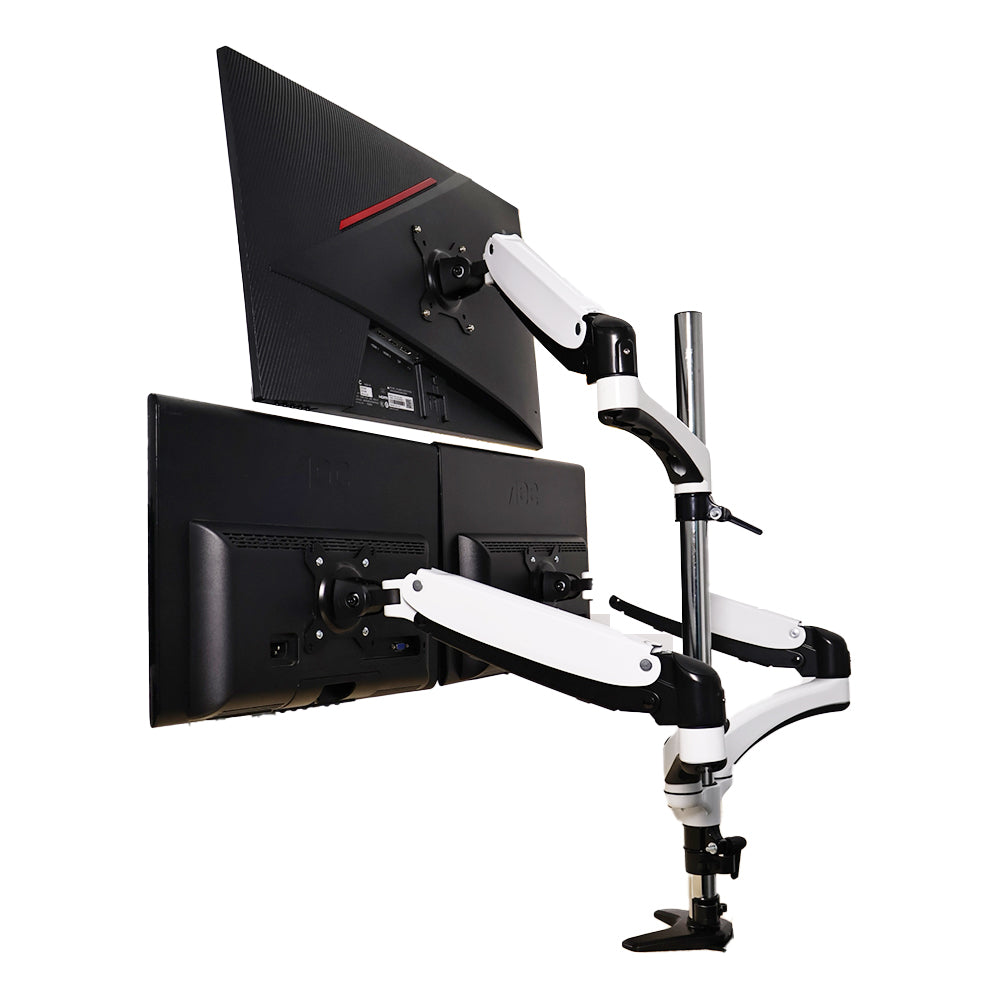
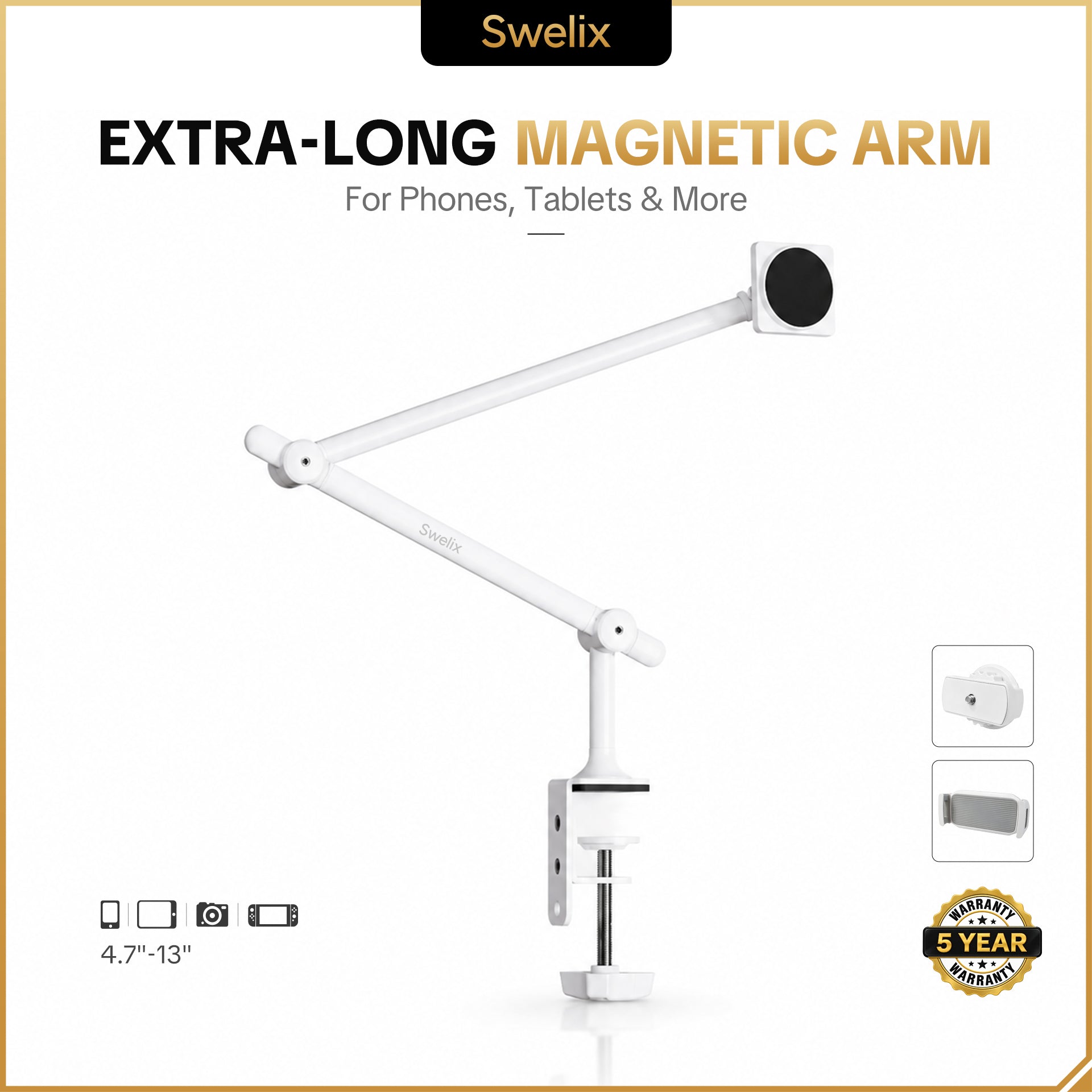
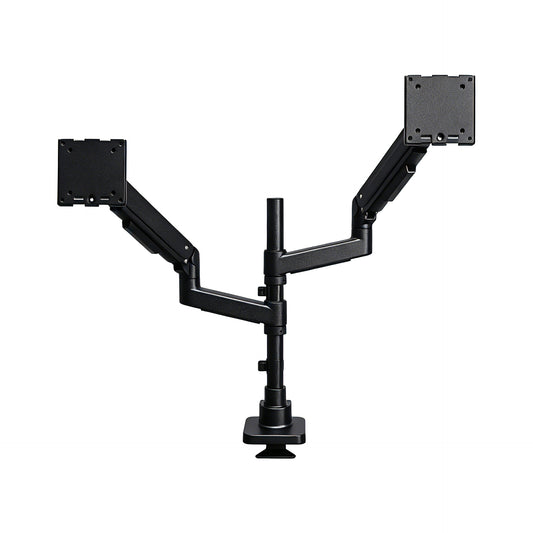
And because the arms are adjustable, the setup isn't locked into one position. I can move a screen closer, raise it, lower it, change the angle, or rotate it when needed.
It gives the whole workspace a cleaner, lighter feel — almost like the screens are floating above the desk.
One Arm, Different Screens, Different Support
🔧 The Right Support Makes a Difference
With a 34-inch ultrawide monitor and a much lighter MacBook, I also needed to think about weight.
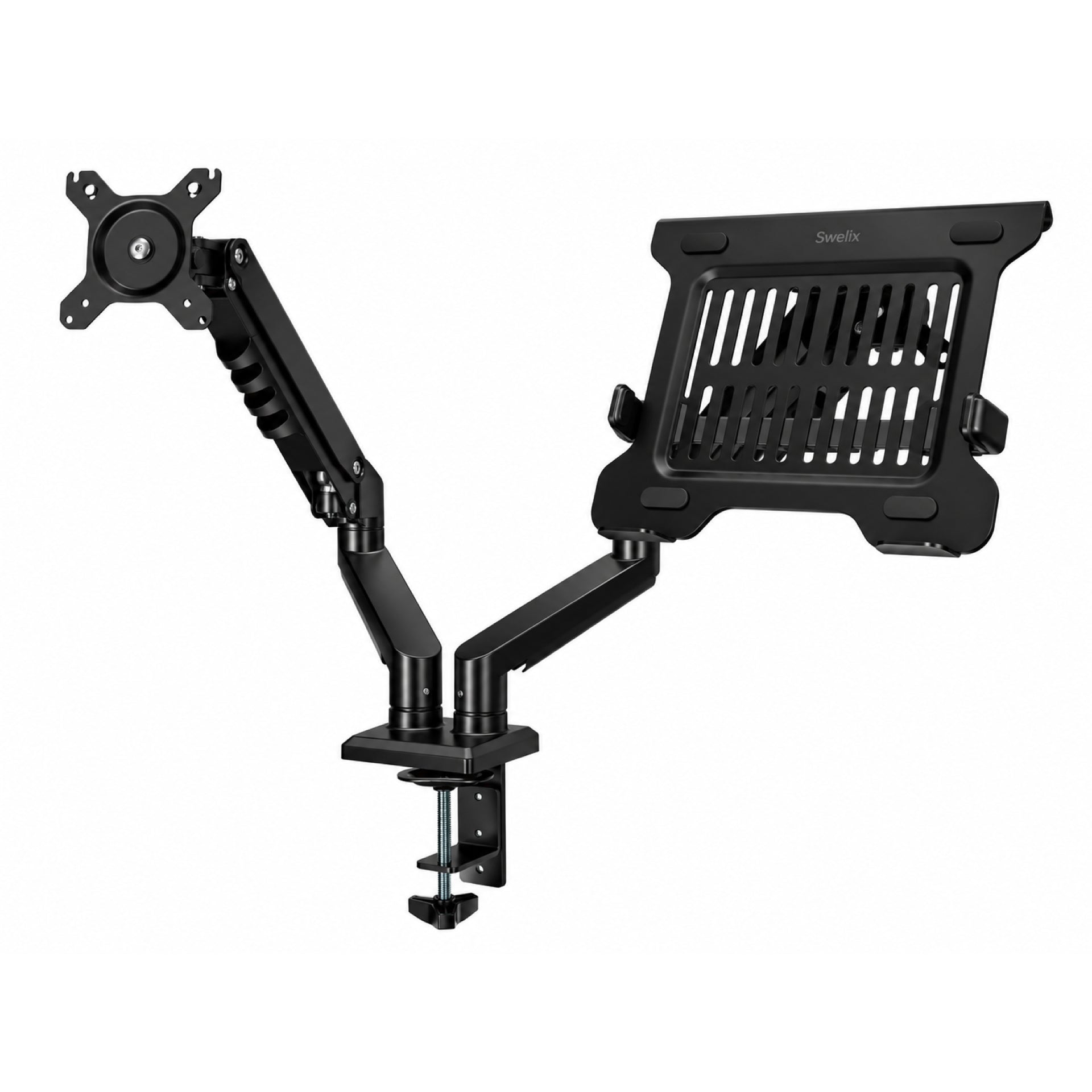
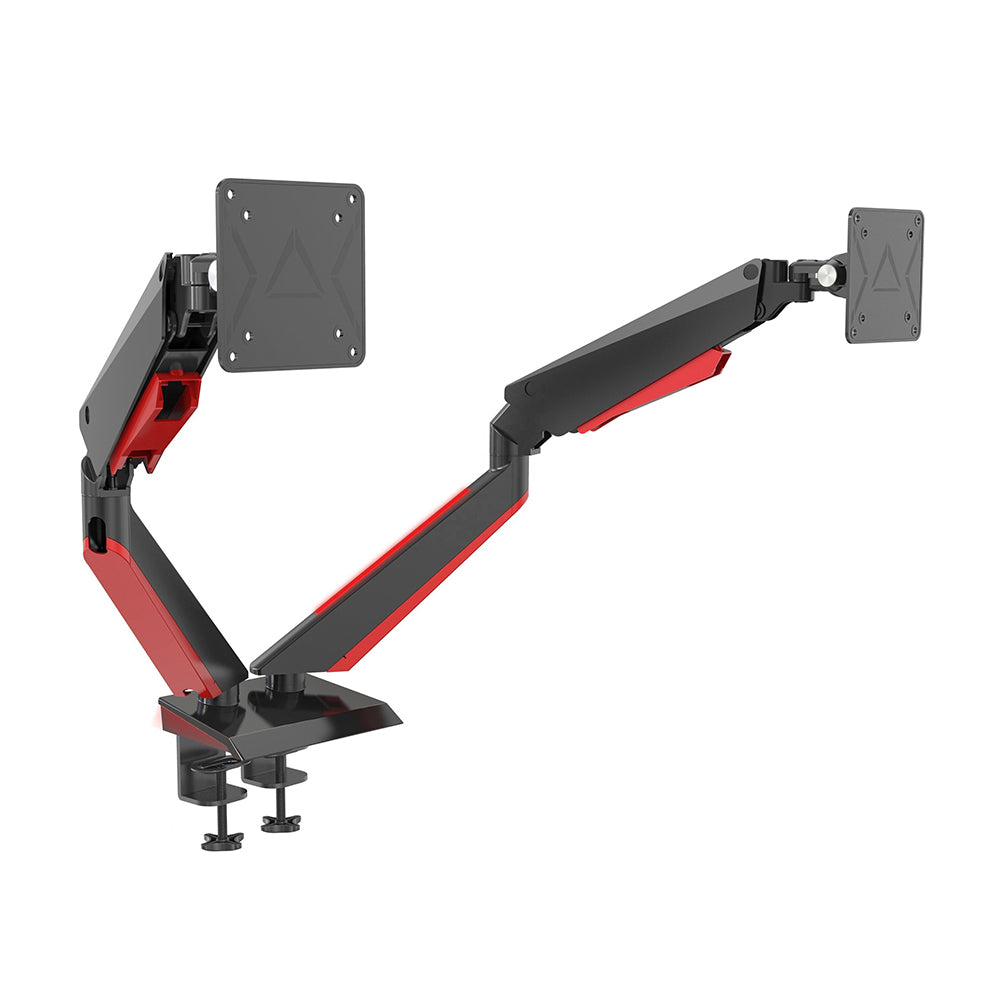
A large monitor needs solid support, but it should still be easy to adjust. That's why I chose a dual monitor arm with adjustable tension that supports screens from 1 to 9 kg.
It lets me find the right level of support for each screen without making the arm difficult to move.
I also prefer a clamp-on installation. There's no need to drill into the desk, and it keeps the base off the main working surface.
For a setup that may change over time, that flexibility is worth having.
The Laptop Can Float, Too
💻 Bringing the MacBook Into the Setup
Raising the monitor but leaving the MacBook flat on the desk didn't quite make sense to me.
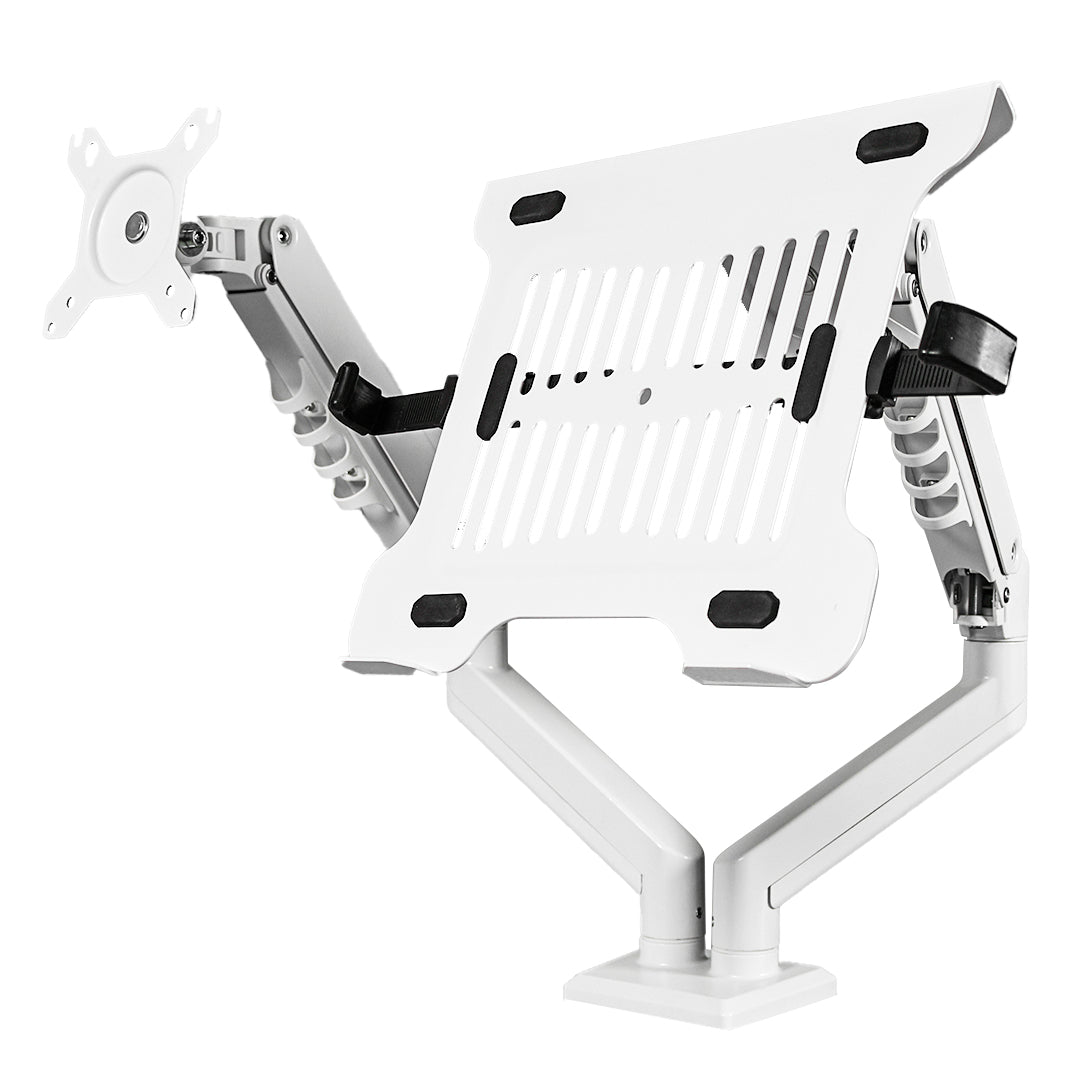
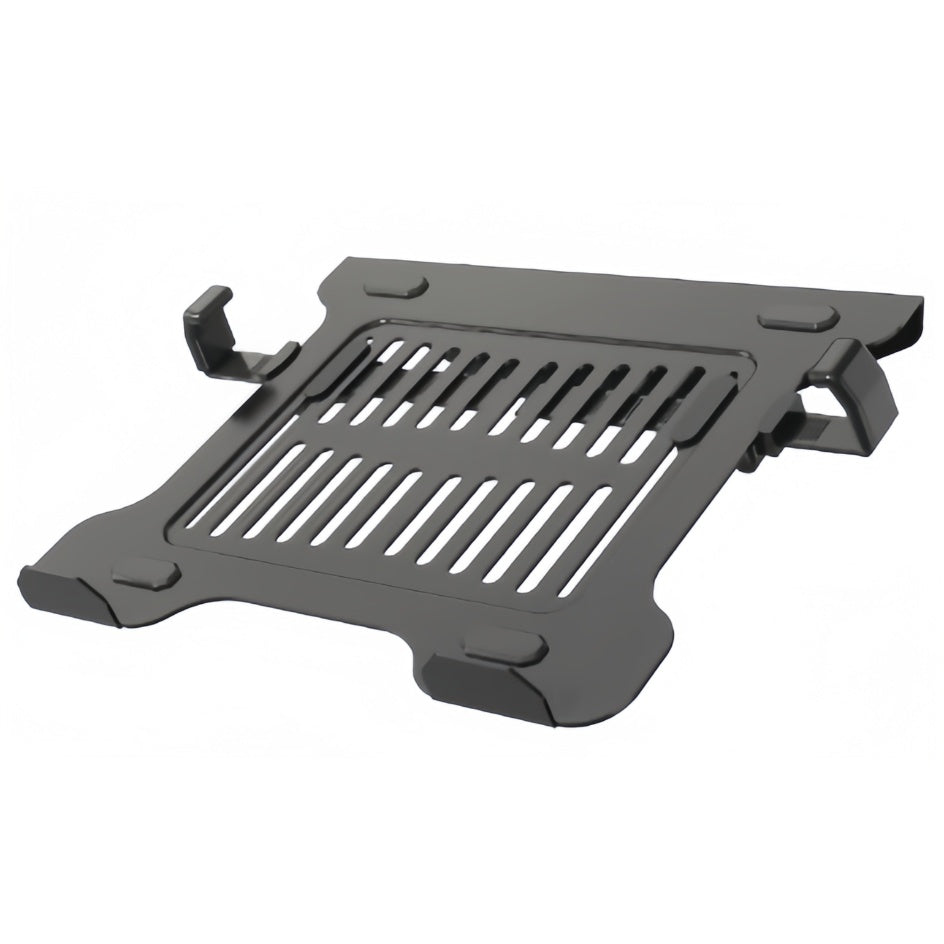
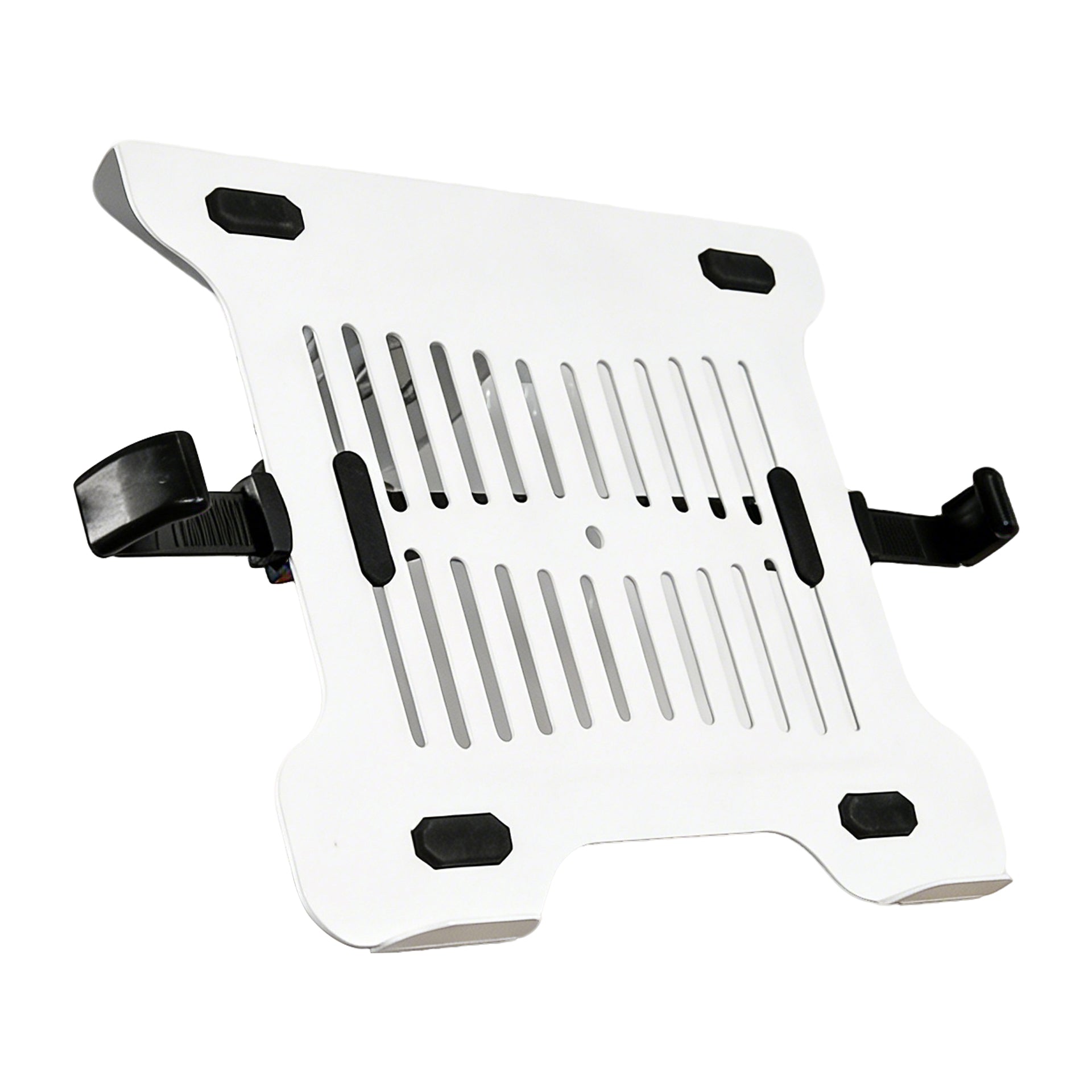
So I added a laptop tray to the arm as well.
Now the MacBook can be lifted to a more natural viewing height alongside the external display. It also frees up the space where the laptop used to sit.
That small change makes the three screens feel more connected, rather than looking like three separate devices placed around the desk.
If you're building a MacBook desk setup, a monitor arm with a laptop tray can be a simple way to create a more cohesive workspace.
A Workspace That Moves With You

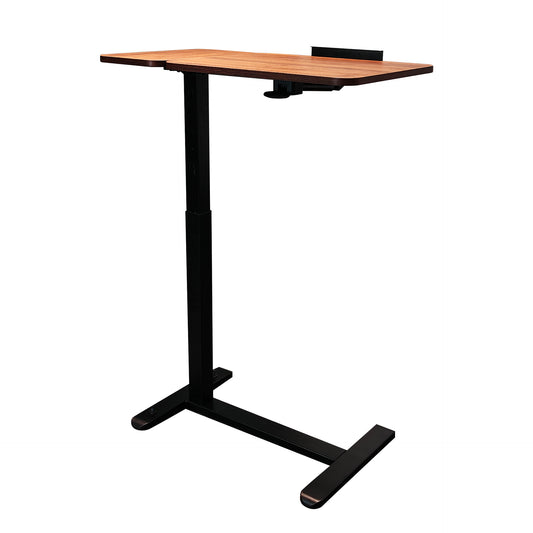
🛋️ Recline, Sit, Stand — Adjust the Screens to Match
This is probably my favorite part of having adjustable screens.
I don't sit the same way all day, so I don't want my screens to stay in exactly the same position all day either.
🛋️ When I Recline
When I'm leaning back, I can angle the screens slightly toward me. My chair supports my back while the screens move into my line of sight.
It's much more comfortable than leaning forward just to see a fixed display.
🪑 When I'm Sitting
For regular desk work, I keep the screens at a comfortable height and viewing angle so I can look at them without constantly adjusting my neck or shoulders.
🎨 When I Stand
For photo editing, drawing, or other creative work, I can raise the screens and angle them slightly upward when I switch to standing.
The desk stays the same. The screens simply adapt to what I'm doing.
Comfort Is Part of the Setup
🌿 It's Not Just About Productivity
Desk setups are often talked about in terms of productivity: more screens, better organization, faster workflows.
Those things matter. But when you're sitting at a desk for hours every day, comfort matters just as much.
For me, a good workspace should make it easier to focus without making my body feel like it has been stuck in one position all day.
That's why I care about being able to change the screen height, angle, and position throughout the day.
Building a comfortable desk is a little like building any good habit. You don't notice every small improvement immediately. But when you use the space every day, those small choices add up.
The best desk setup isn't the one that looks perfect for a photo. It's the one that still feels good after hours of use.

Build Your Own Wireless Desk Setup
🪴 Start With the Way You Actually Work
You don't need to copy someone else's desk exactly.
Use desk setup inspiration as a starting point, then build around your own devices, habits, and working style.
- Think about how many screens you actually use.
- Keep the devices you use most within easy reach.
- Lift monitors off the desk when you want more usable surface space.
- Choose adjustable arms if you switch between sitting, reclining, and standing.
- Position your screens around your natural line of sight.
- Leave some open space. A clean desk doesn't need to be completely filled.
And don't worry about getting everything right on the first try.
Use your setup for a while. Notice what feels awkward. Move things around. Let the workspace evolve with you.
Your Desk Should Work for You
My three-screen Mac setup started with a simple need for more screen space.
But once I lifted the screens and made them adjustable, the whole experience changed.
The MacBook, ultrawide monitor, and iPad give me the space I need to work. The monitor arms give them the flexibility to move. And the open desk underneath gives me room to breathe.
That's what I want from a workspace: not just a place to get things done, but a place that feels comfortable enough to come back to every day.
Because when work takes up a big part of your day, creating a desk that works with you is a small investment that keeps paying off.
Build a Workspace That Feels Like Yours
Your ideal setup doesn't have to look like anyone else's. Start with the way you work, then make the space work for you.
Explore Swelix Monitor Arms See More Desk Setup Inspiration →