
Desk Setup Inspiration: Why I Use Multiple Screens
People always ask me the same question:
“Why do you have so many screens on your desk?”
And honestly — I get it.
At first glance, it does look like a lot.
But this setup didn’t start this way.
I didn’t plan to build a “multi-screen desk.”
It just slowly became this, based on what I actually needed.
Why I Ended Up With So Many Screens

At the beginning, I only had one main device.
Everything happened on that one screen — design, editing, browsing, communication.
And it worked… until it didn’t.
The more I worked, the more I noticed how much time I spent switching.
Switching between apps. Switching between windows. Switching between tasks.
So I added a second screen.
Then another device.
Then one more.
Not because I wanted more screens — but because I wanted less friction.
My Desk Setup Breakdown (Each Screen Has a Job)
🖥️ Main Productivity Setup
My main device is a Mac mini paired with a 32-inch monitor.
This is where most of the real work happens — design, photo editing, and occasional video editing.
The large screen helps me stay focused.
It gives enough space to work comfortably without constantly zooming in and out.
And when I’m not working, it becomes my entertainment screen.
Movies, videos, or just background visuals.
💻 Mobile Productivity
On the left side, I use a MacBook Pro.
This is my mobile setup for when I need to work outside.
I chose a 14-inch model intentionally.
Since I already have a main desktop setup, portability matters more.
When I’m at the desk, it becomes a secondary device.
Perfect for multitasking across systems when needed.
🎧 Secondary Device (Old Laptop)
On the right side, there’s an older laptop.
It’s about 7 years old, so it’s no longer part of my productivity setup.
But it still has a role.
I use it as a dedicated media device.
Music when I need focus. Shows when the work is repetitive.
It adds something subtle — a sense of company.
Which, surprisingly, makes long work sessions easier.
📱 Flexible Device (iPad Pro)
On the desk, I also keep an iPad Pro.
This is probably the most flexible device in the setup.
I use it to:
– Check references
– Translate content
– Find materials while designing
– Sketch or do light editing
Instead of switching back and forth on one screen, I can just glance sideways.
It’s also incredibly useful when meeting clients.
Presentations, quick demos, or even just showing ideas — it works seamlessly.
How I Keep Everything Organized (Without Chaos)
🦾 Monitor Arms & Device Stands

With this many devices, organization becomes important.
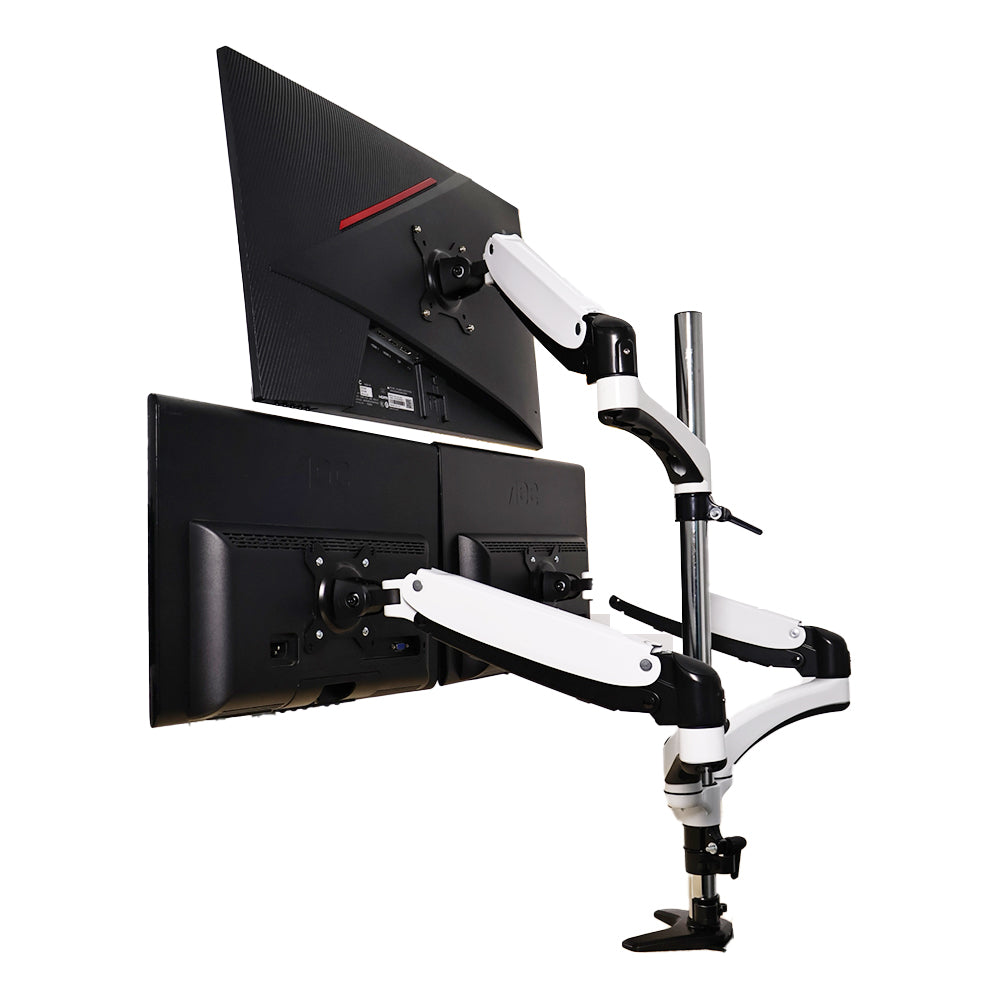
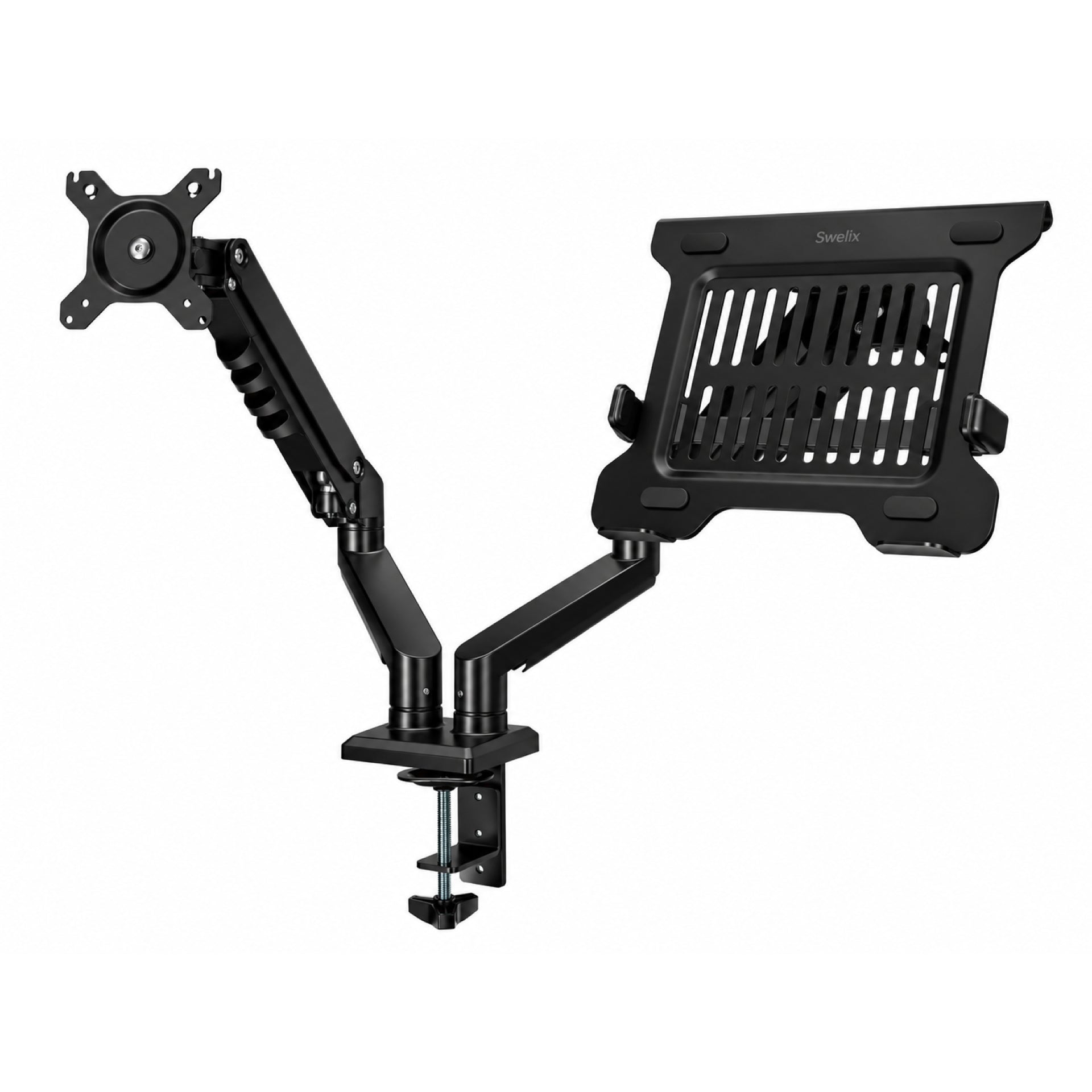
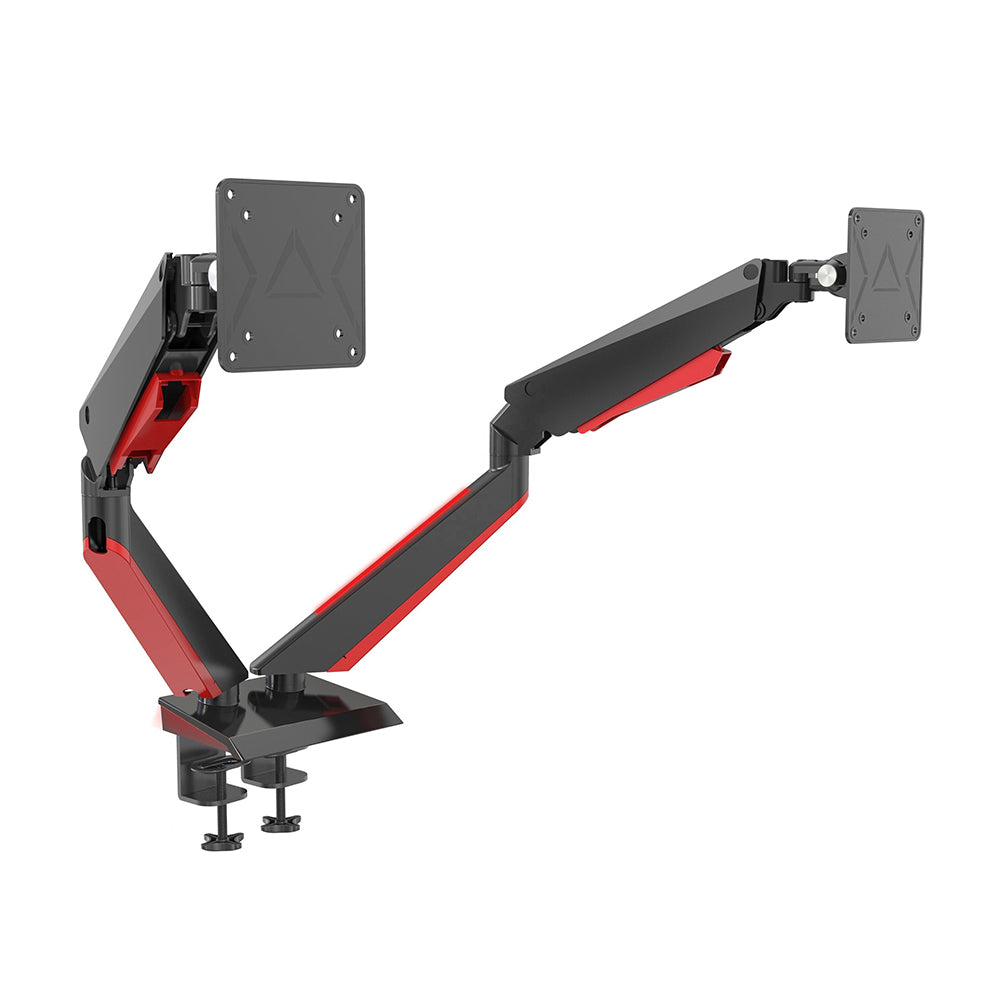
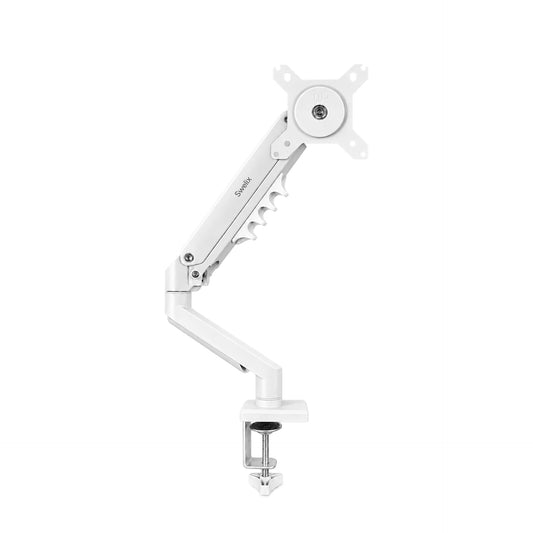
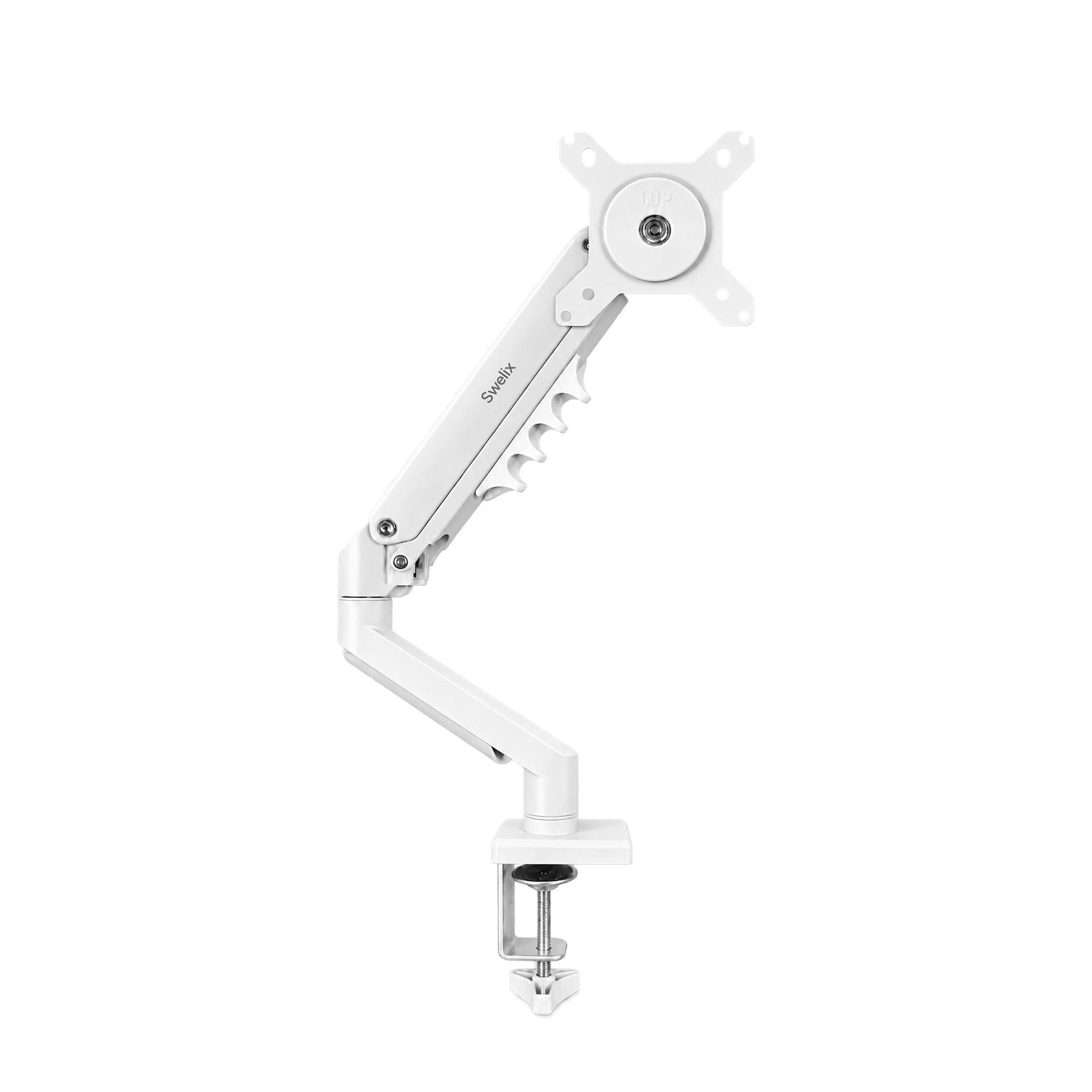
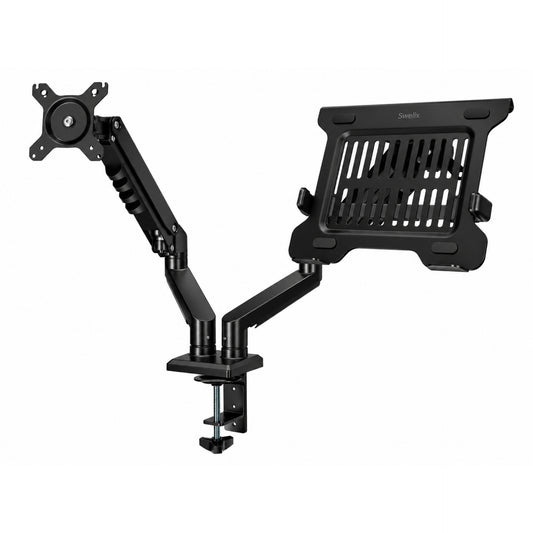
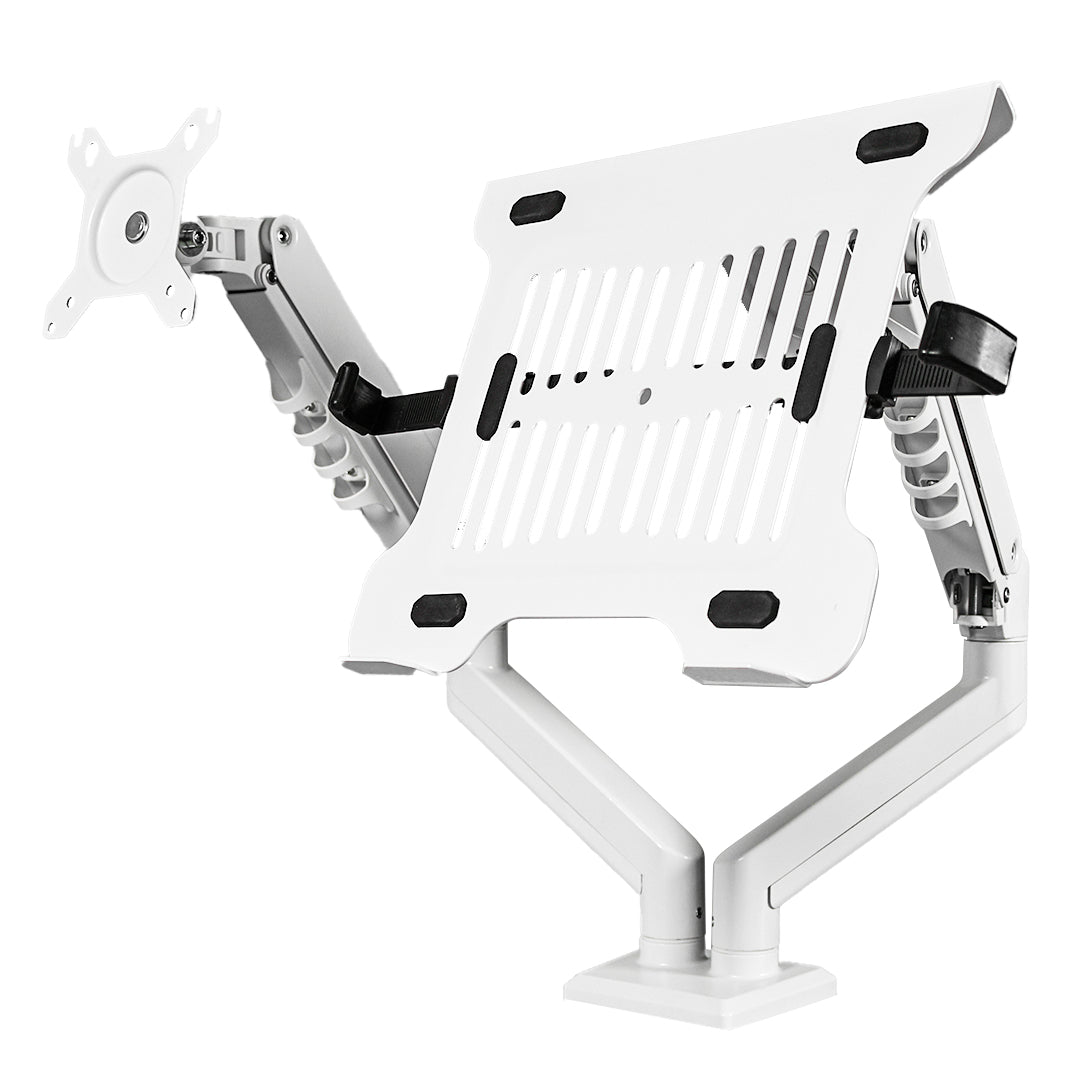
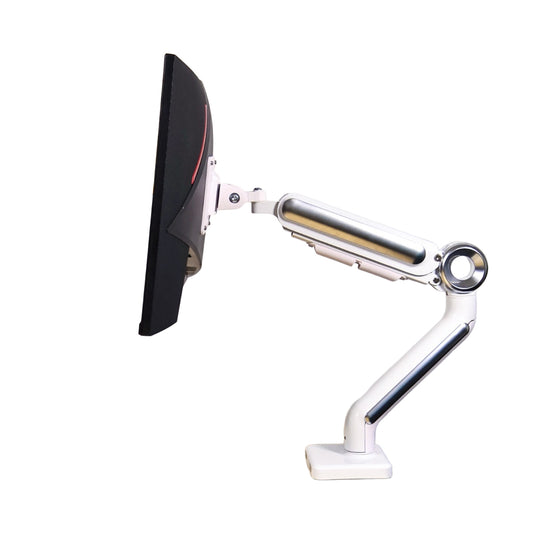
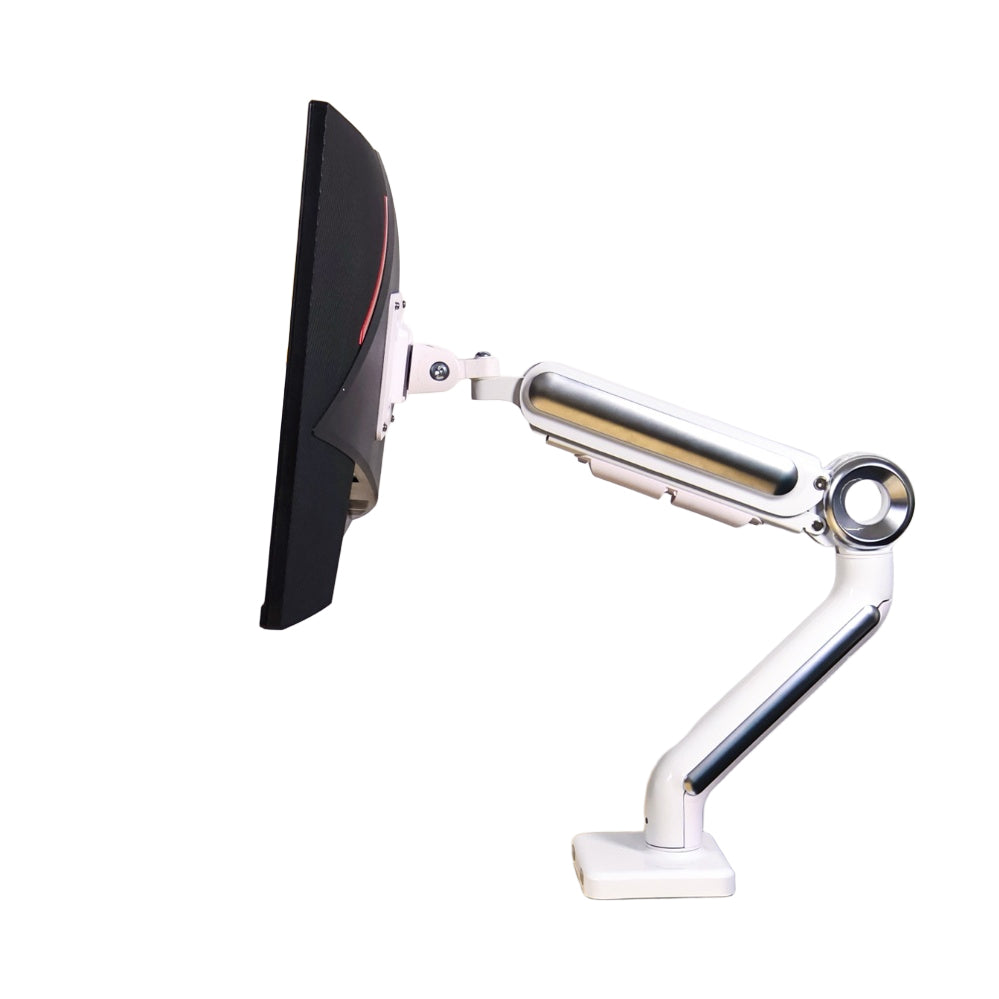
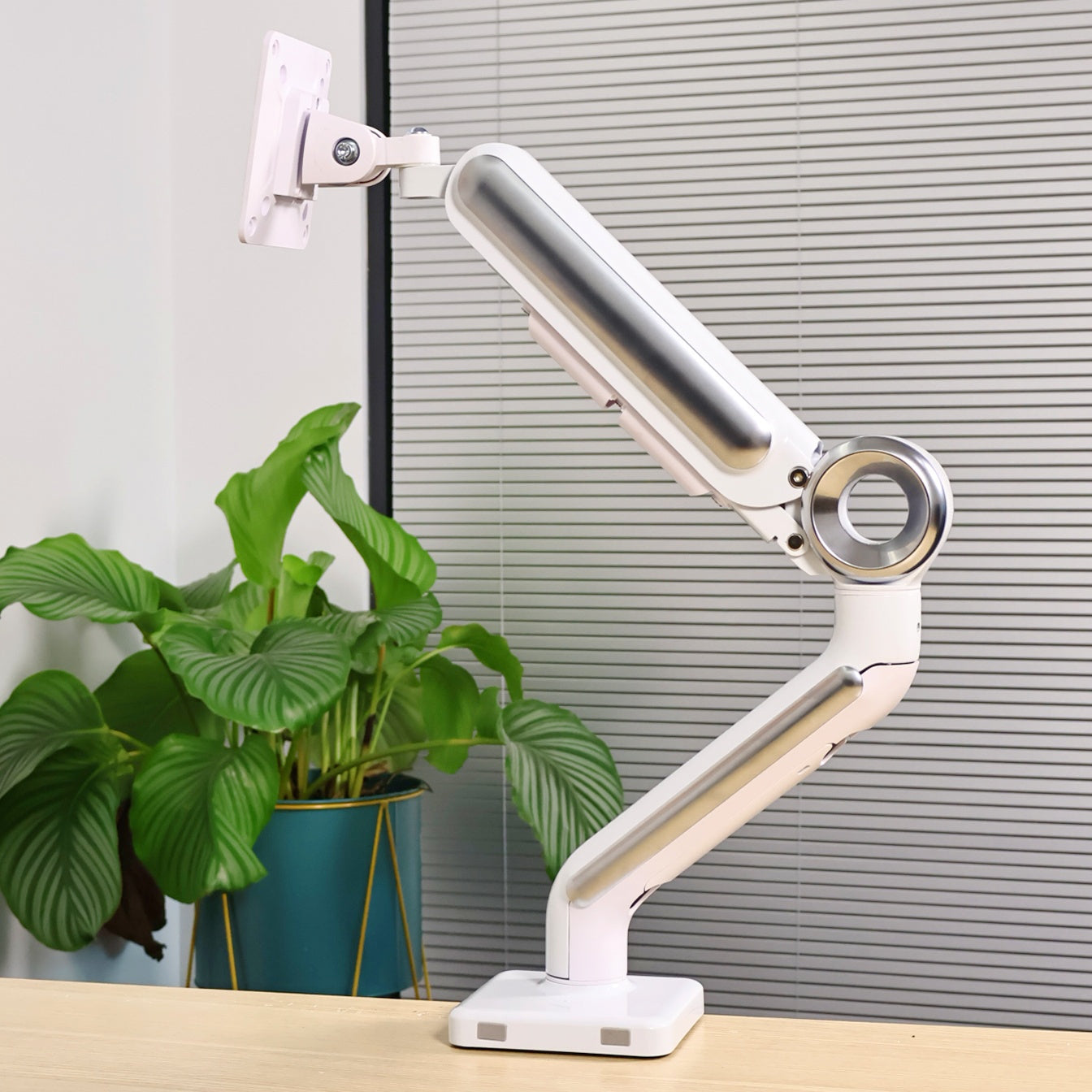
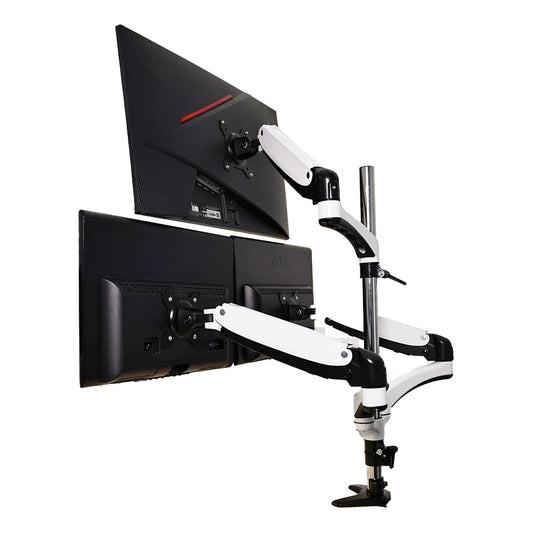
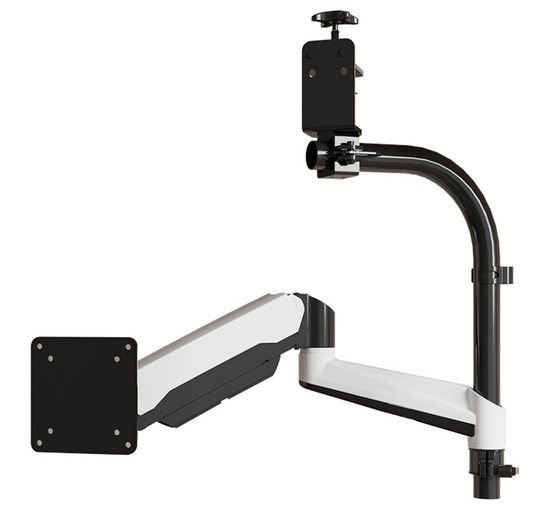
I use a Swelix single monitor arm for my main display.
It allows full adjustment — height, angle, and distance.
But more importantly, it frees up space on the desk.
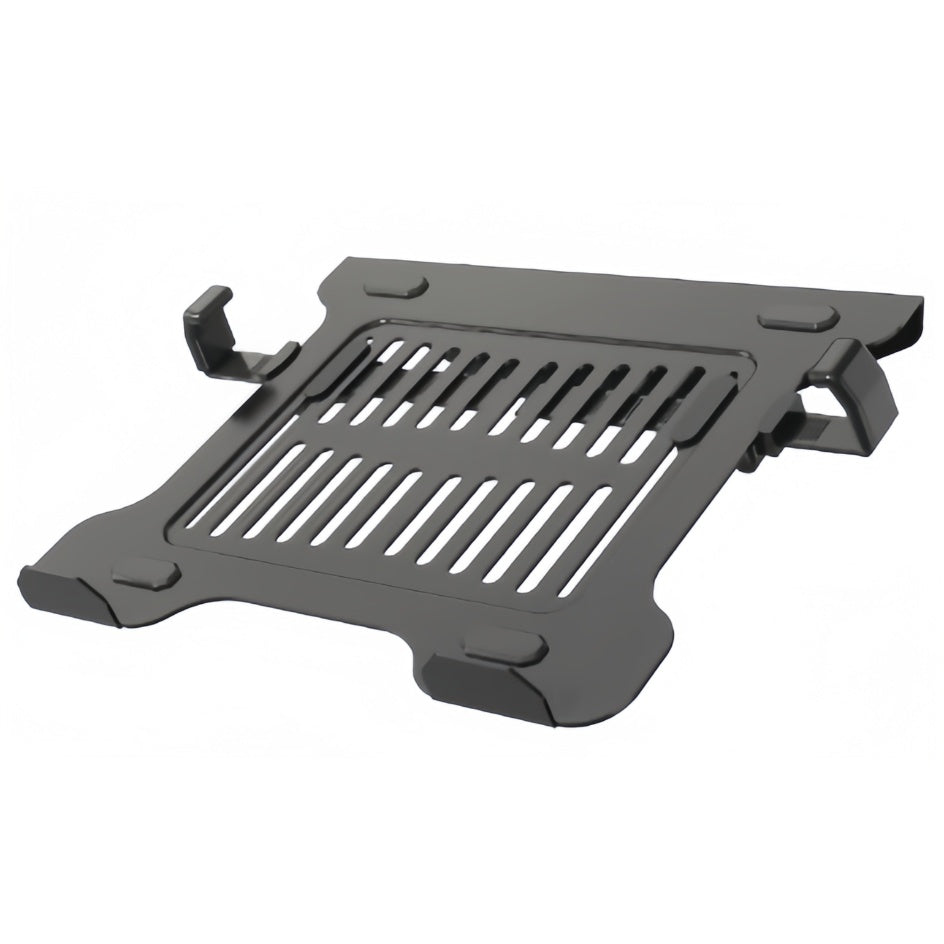
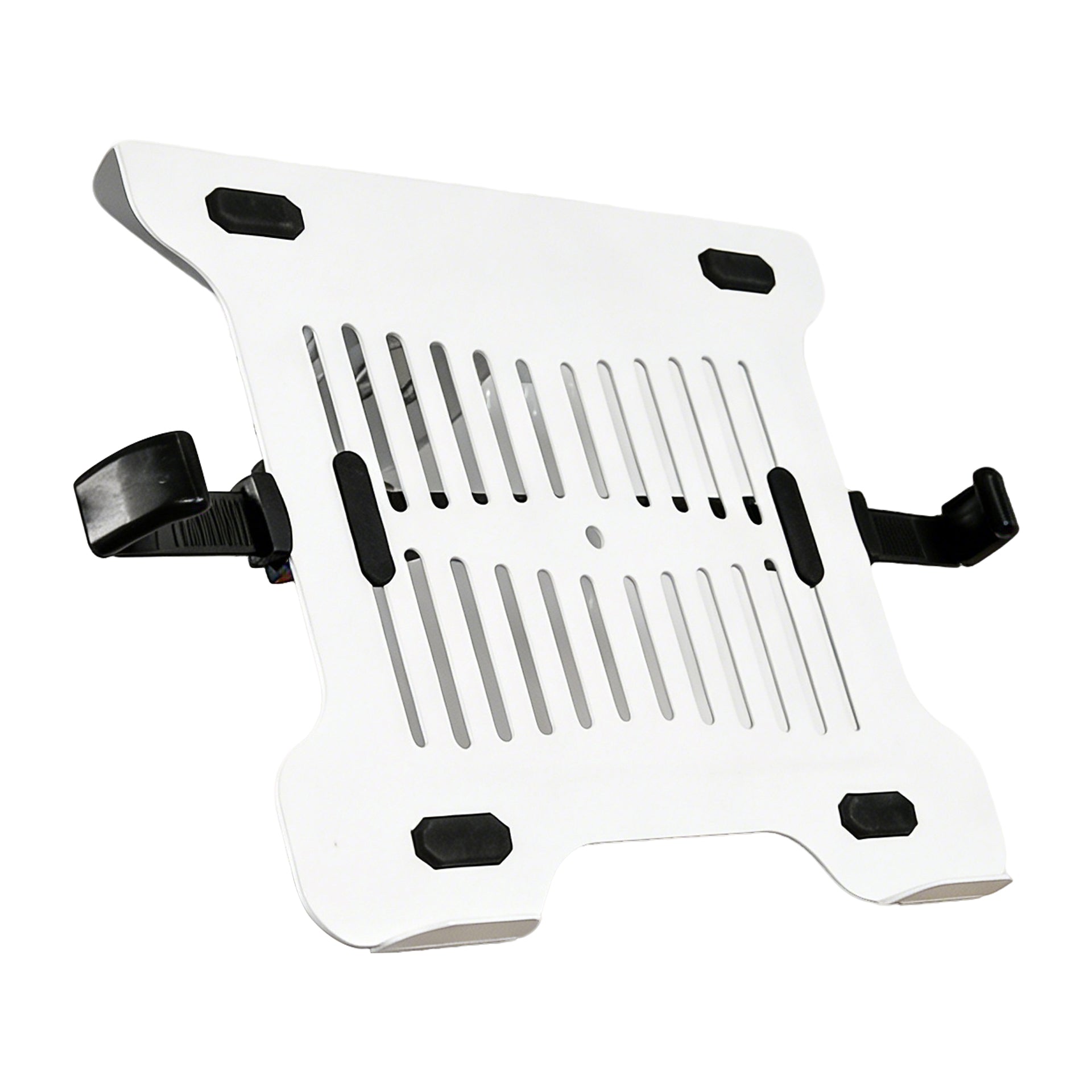
For other devices, I use simple stands.
The goal is to align everything to eye level.
No more looking down constantly.
Everything faces me naturally.
📦 Desk Riser & Space Management

I also use a desk riser.
It creates an extra layer of space — both above and below.
Small items go on top.
Keyboard and mouse can slide underneath when I need a clean writing area.
This makes the desk more flexible.
Not just for work, but for different types of tasks.
What This Setup Actually Improves
- – Clear separation between tasks
- – Less app and window switching
- – Better posture with aligned screens
- – More immersive workflow
- – A desk that feels personal and comfortable
Is This Setup Too Much?
Some people might think this is overkill.
And honestly, if you don’t need it — it probably is.
But for me, every screen has a purpose.
Nothing is just sitting there for looks.
This isn’t about building something “cool.”
It’s about building something that works.
Who This Setup Works For
- – Designers and creatives
- – Remote workers
- – People who multitask heavily
- – Anyone who hates switching between tabs constantly
Final Thoughts
I didn’t design this setup intentionally.
It just grew with my needs.
And that’s probably the most important thing.
You don’t need multiple screens to start.
Just begin with what you use most.
Then improve it, step by step.
Eventually, your setup will start making sense — not to others, but to you.
If you’re thinking about improving your desk setup, start with small changes that make your workflow easier.
Upgrade Your Desk Setup Explore more desk setup inspiration