
Dual Monitor Desk Setup Inspiration: Why I’ll Never Go Back to a Single Screen
If you’ve ever used a dual monitor setup, you probably know the feeling.
At first, it just feels like more space. Nothing too special.
But after a while, things start to change a bit. You stop switching tabs as much. You know where everything is. Work feels a little smoother without really trying.
And then one day, you go back to a single screen.
That’s when it hits you — it suddenly feels kind of limited.
Welcome to My Desk

Hi, I’m a designer — and this is my desk setup.
I’ve shared parts of it before, and people usually notice the dual screens.
But what they actually ask about isn’t the screens themselves — it’s how the whole desk looks so clean.
So today, I wanted to talk more about what’s behind the setup, not just what’s on it.
Why I Use a Dual Monitor Setup
For me, using two screens isn’t really about having a “cool setup.”
It’s just easier.
Usually I keep one screen for work — design tools, layouts, editing — and the other for references or documents.
That way I don’t have to keep switching back and forth.
Everything stays open, and it just feels more natural.
And yeah… sometimes one screen is just there for a quick break.
But that probably happens to everyone.
Do You Really Need a Monitor Arm?
This is something people ask me quite a lot.
“Do I actually need a monitor arm?”
Honestly, it depends.
If your setup is pretty simple and you don’t move your screens much, you might be fine without one.
I didn’t think much about it at first either.
But after using one for a while, it’s hard to go back.
3 Reasons I Decided to Use a Monitor Arm
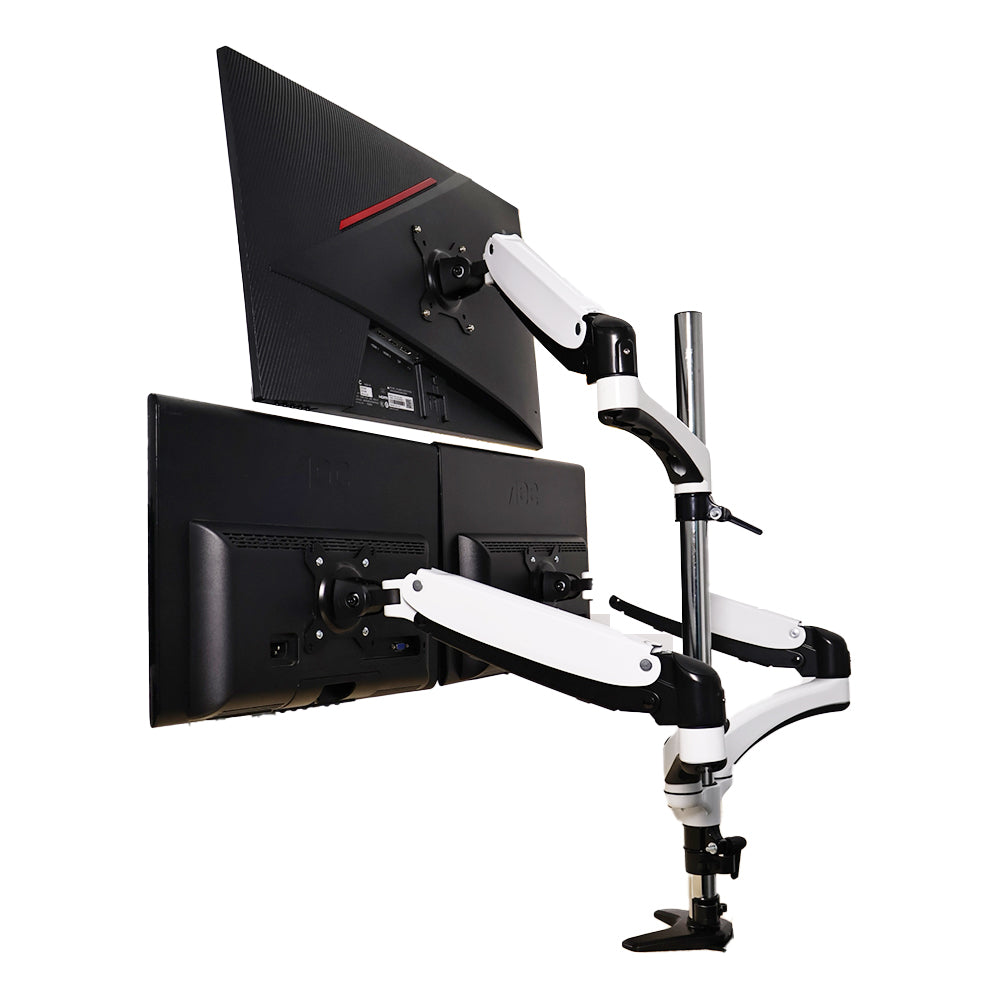
🔄 Step 1: More Flexibility in Screen Positioning
Before this, I was just using the standard monitor stand.
It worked, but the movement was pretty limited — just small adjustments.
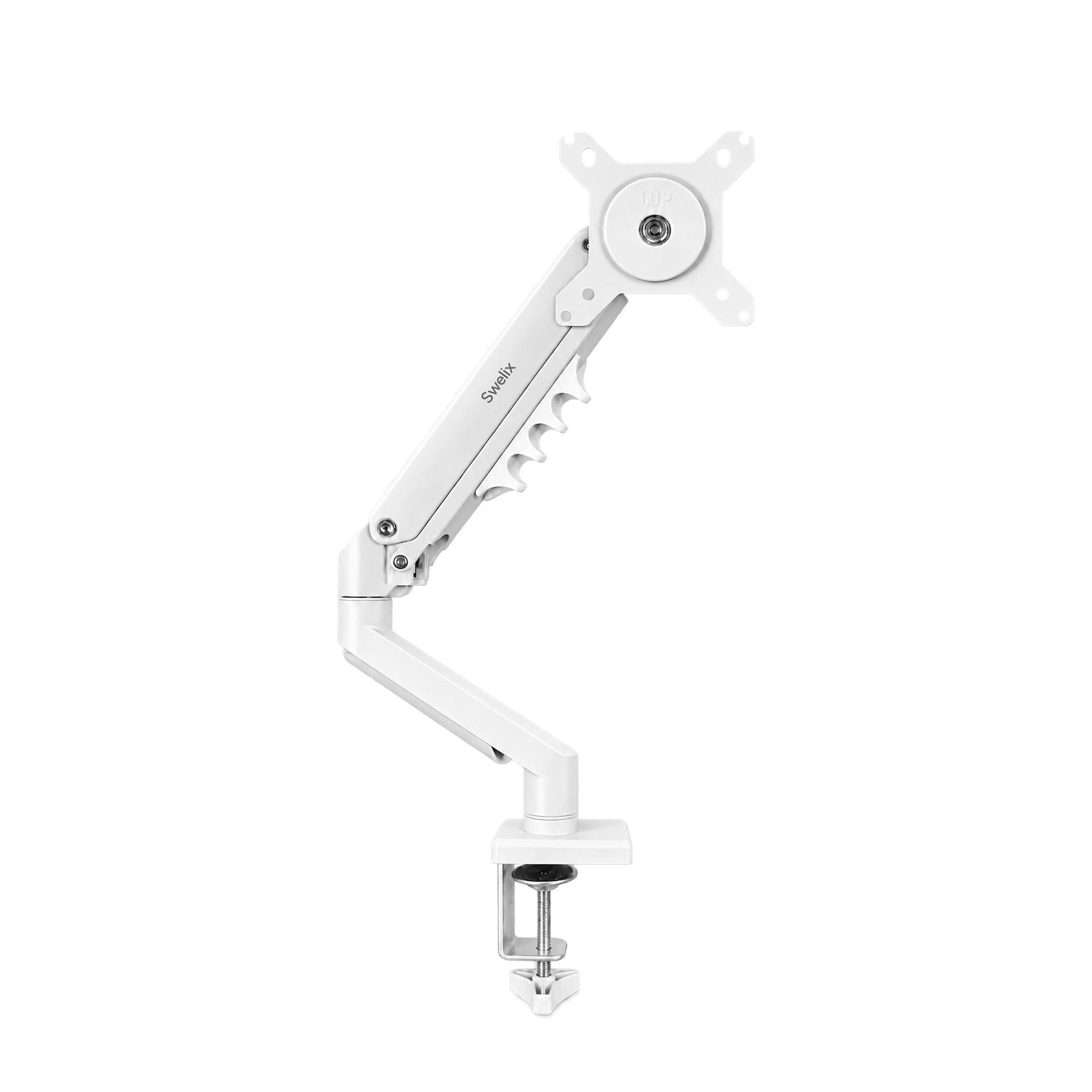
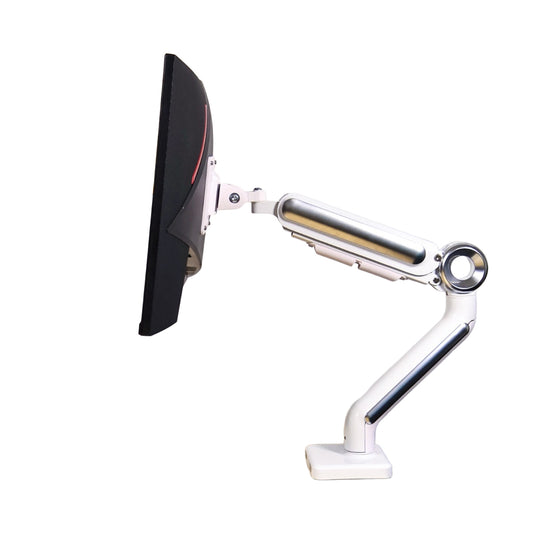
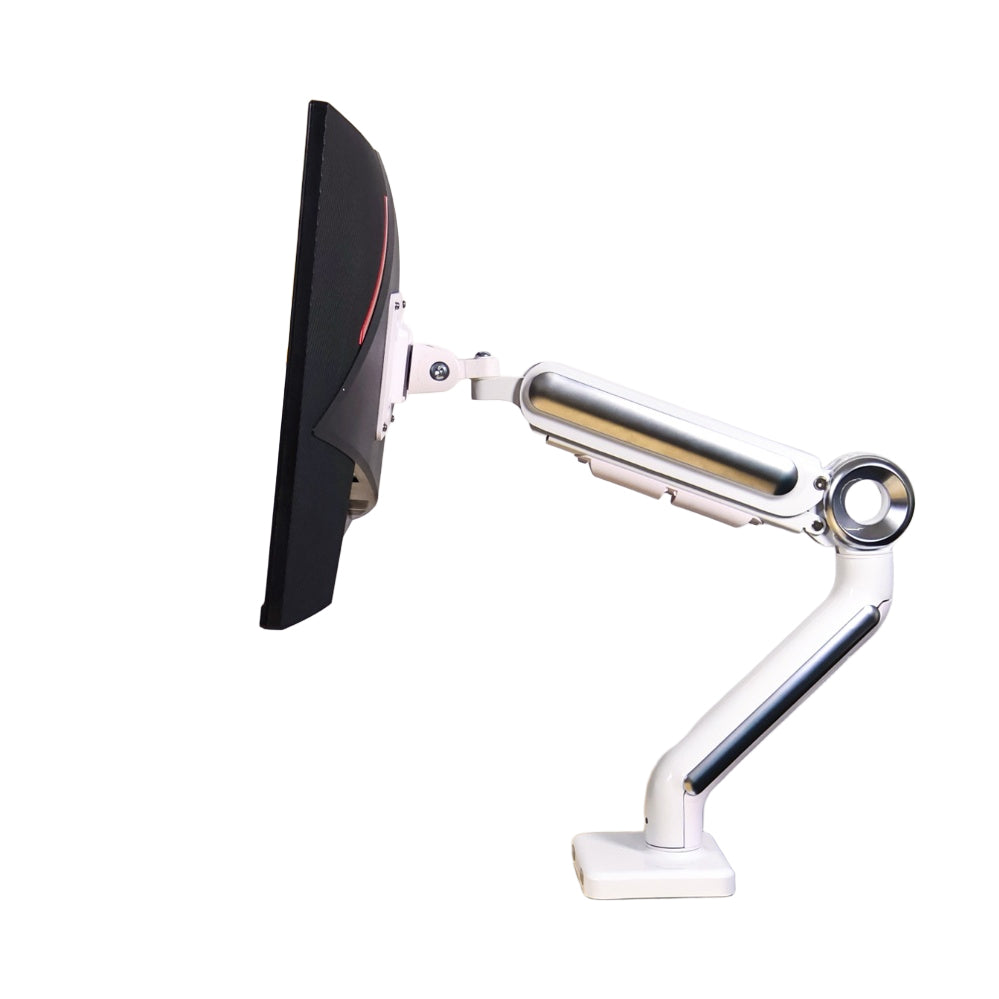
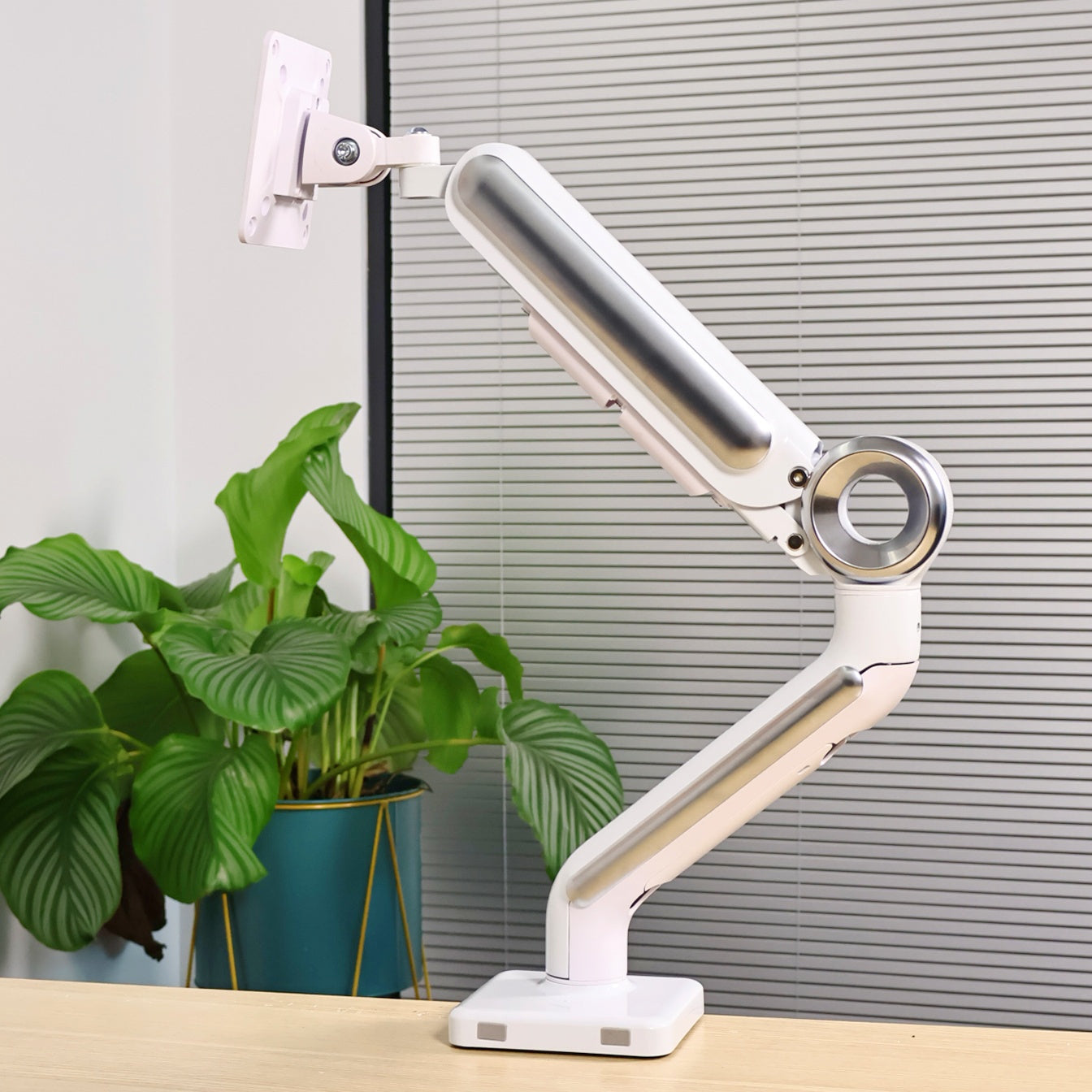
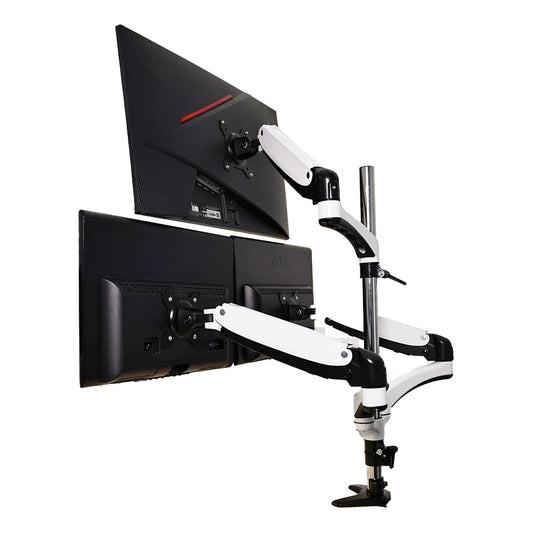
With a monitor arm, it’s a different experience.
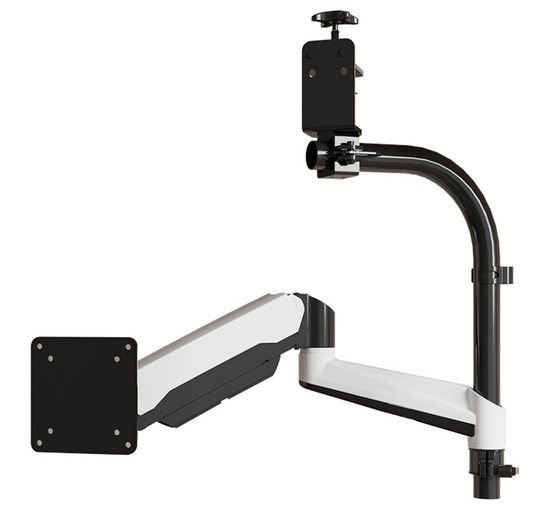
You can move the screens around more freely — up, down, closer, further.
I don’t adjust it all the time, but when I need to, it’s nice to have that option.
Especially on longer work days, small adjustments make things more comfortable.

📏 Step 2: Saving More Desk Space
This was probably the most noticeable change for me.
Once I removed the original monitor stands, the desk just felt more open.
I didn’t realize how much space those bases were taking until they were gone.
With the screens lifted, everything feels lighter.
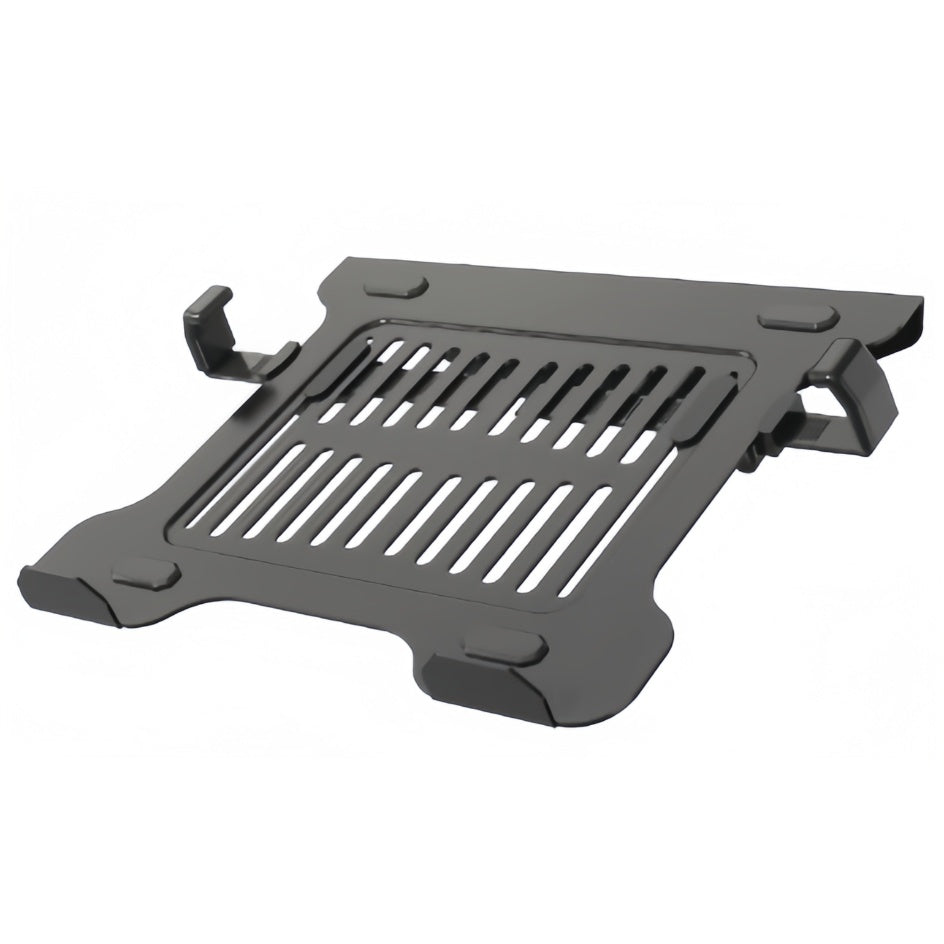
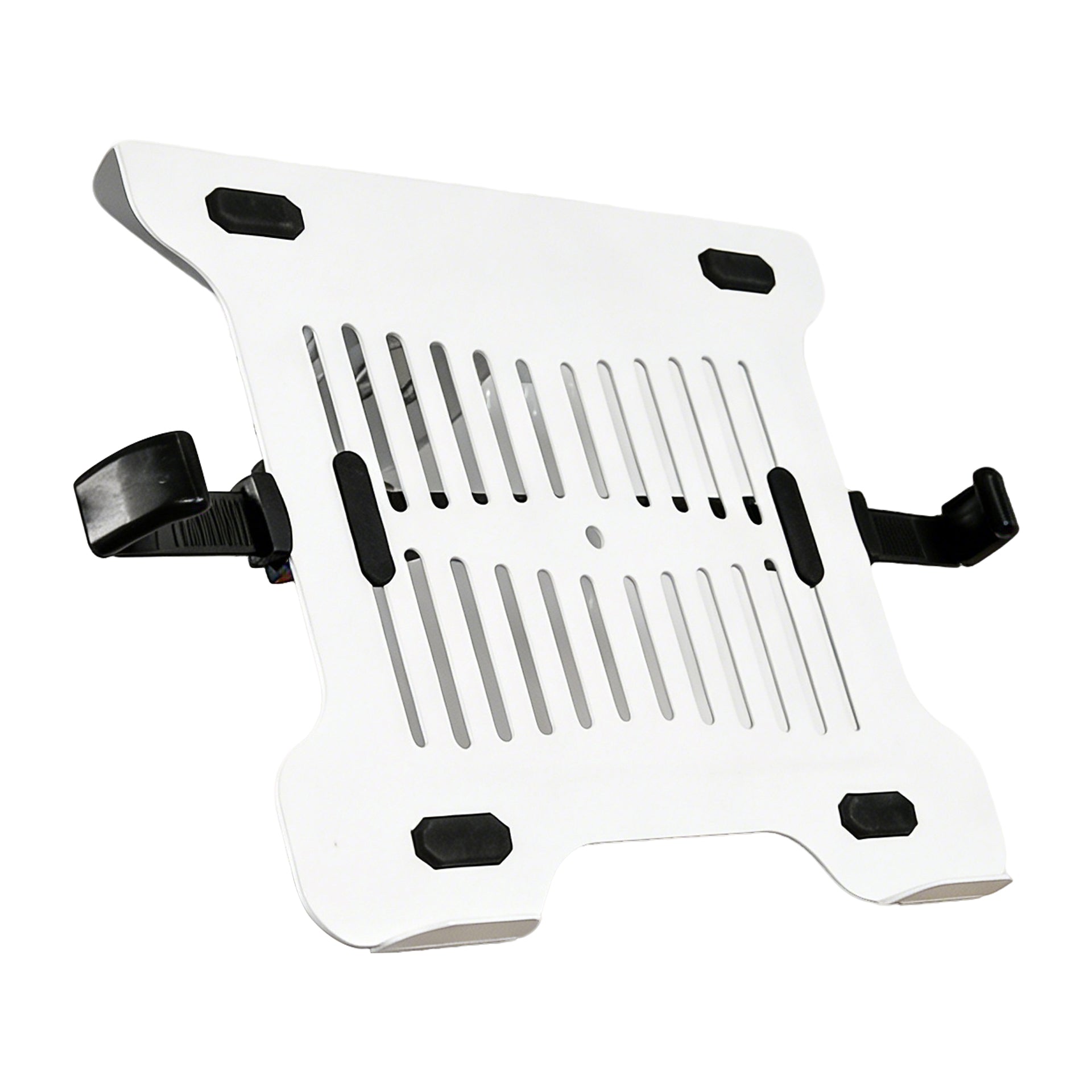
I also added a long riser shelf under the monitors.
Now I can place books and small items underneath, and still have room on top for things I like.
It’s not about having more space — it just feels more usable.
✨ Step 3: A Cleaner, More Minimal Desk
A messy desk isn’t always about having too many things.
A lot of the time, it’s the cables.
Once they start overlapping, everything looks busy.
This is where the monitor arm helped more than I expected.
The cables run along the arm and stay behind the screens.
From the front, you barely notice any cables.
It’s a small detail, but it changes how the whole setup feels.
Small Changes That Made a Big Difference
- – Keep your screens at eye level
- – Only leave what you actually use on the desk
- – Use vertical space instead of spreading things out
- – Try to reduce cables where you can
My Current Setup (Simple Breakdown)
Monitors
Two 27-inch displays
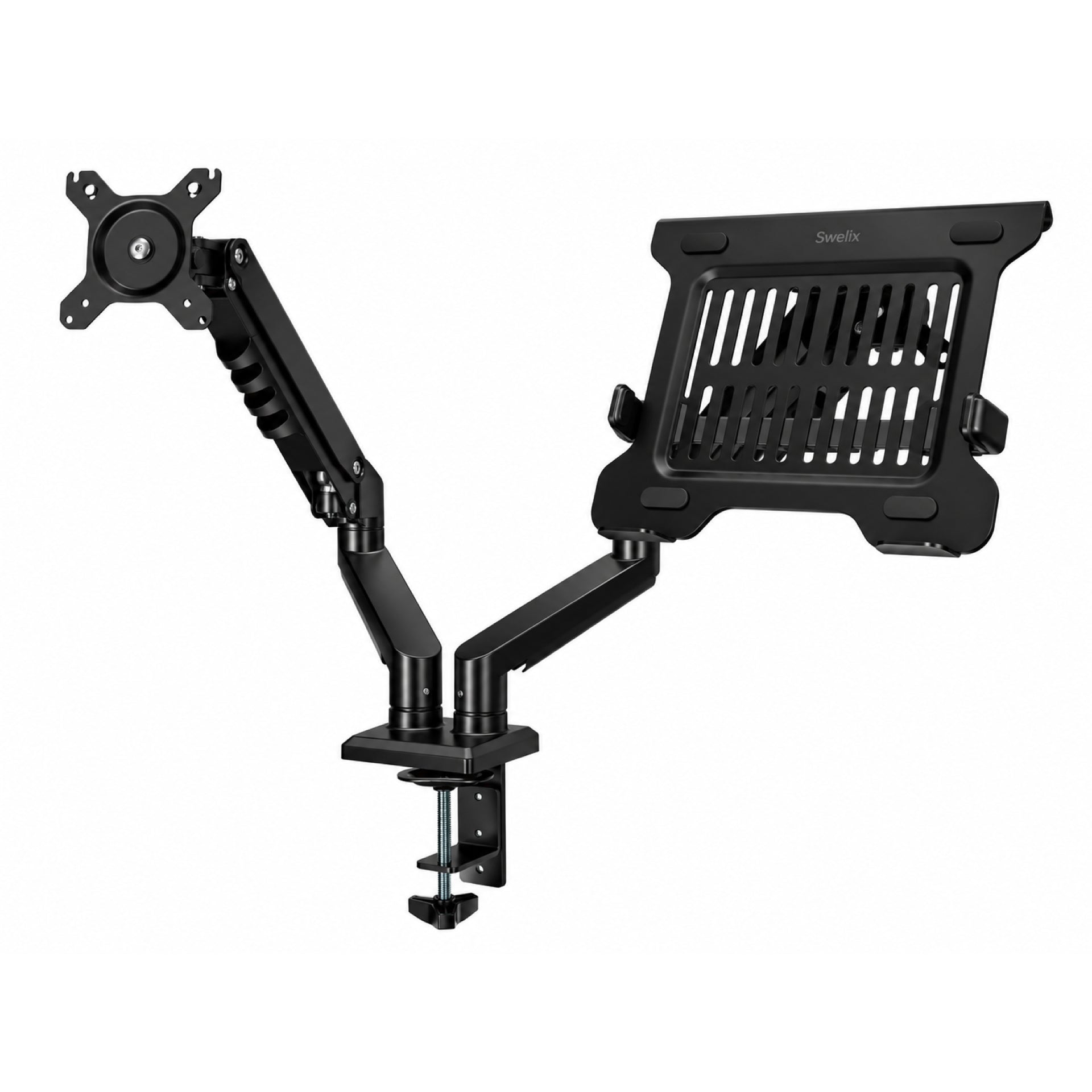
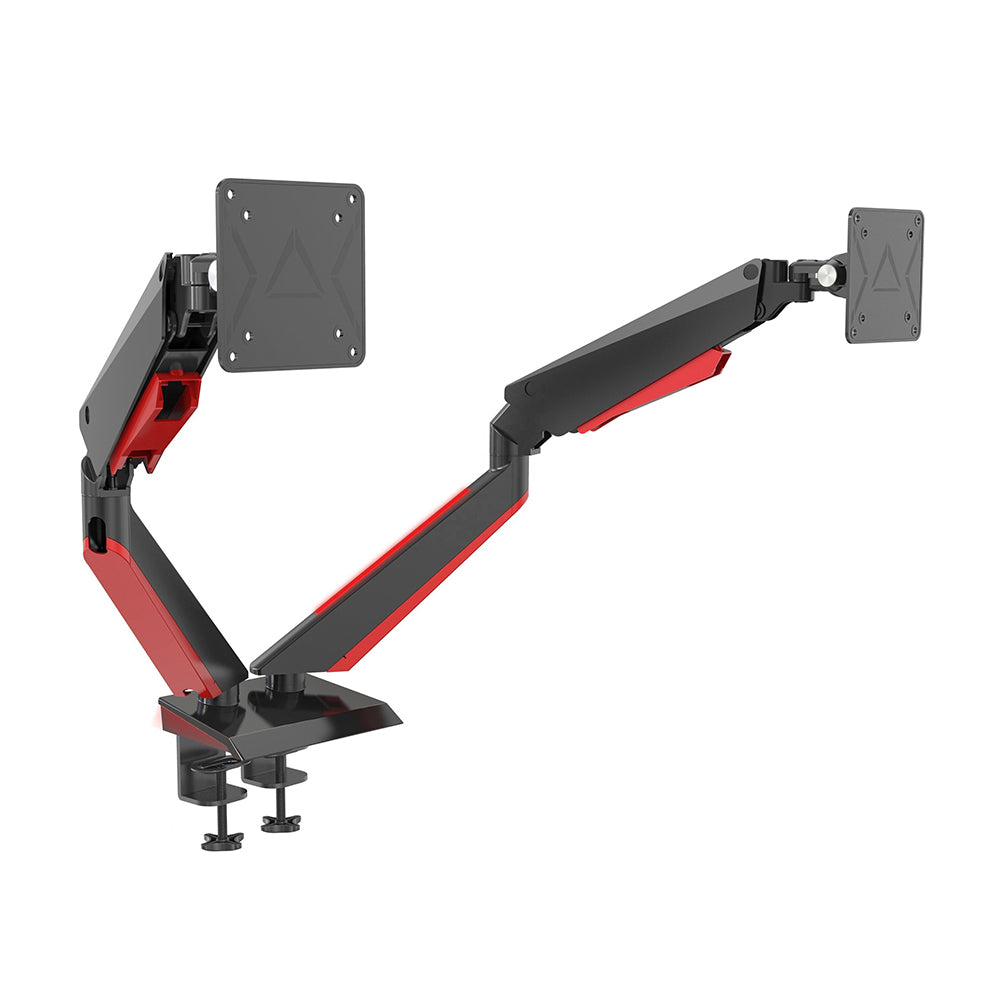
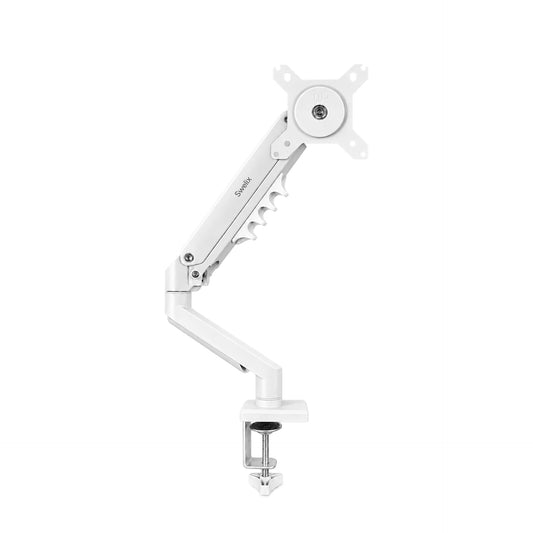
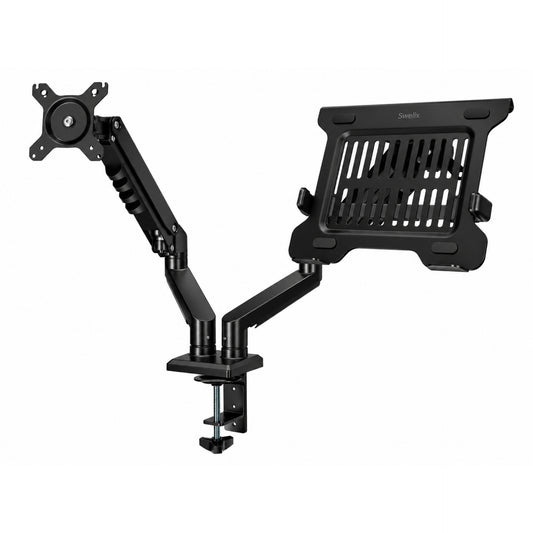
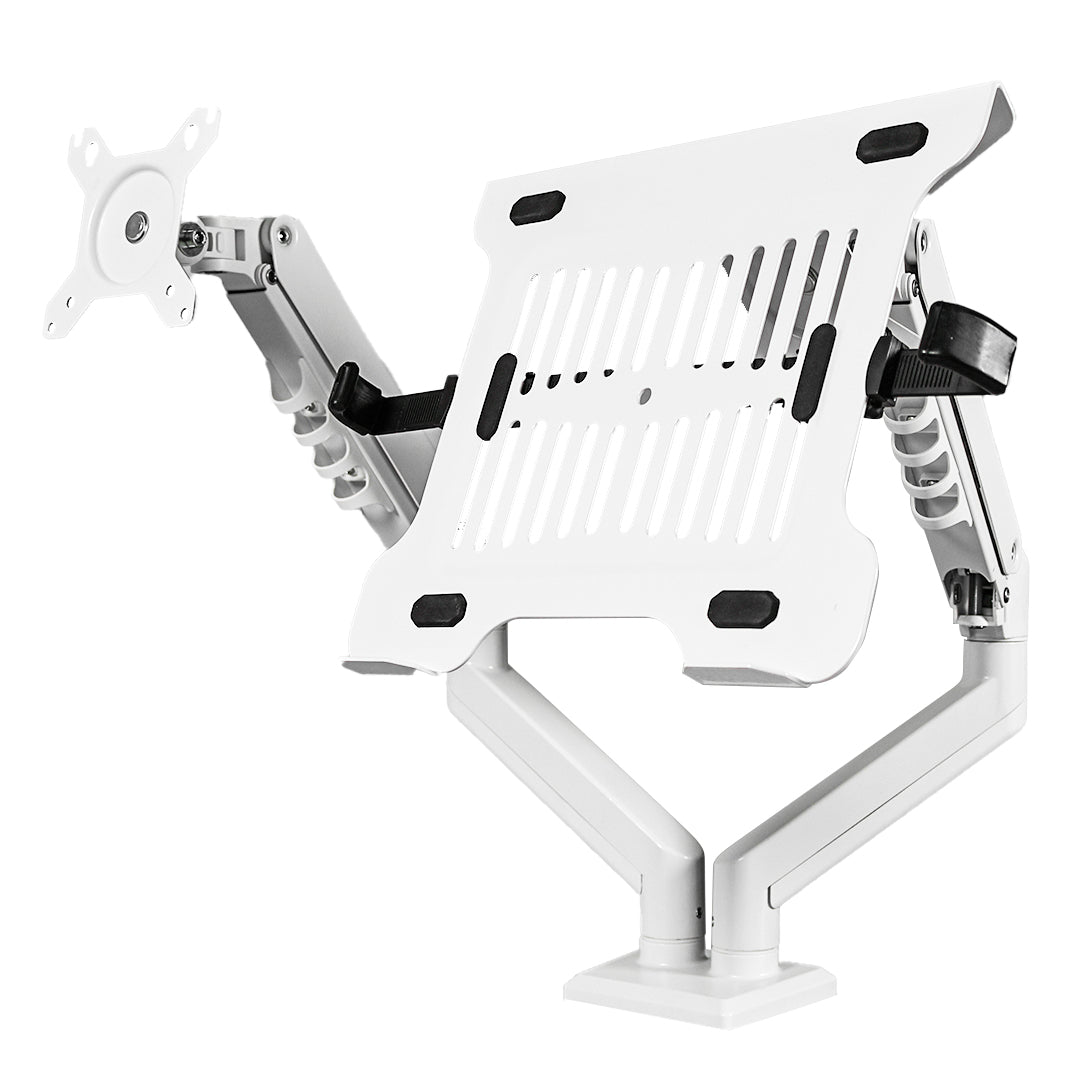
Monitor Arm

Desk Setup
Mostly just the essentials, plus a riser shelf
Before vs After: What Actually Changed
- More space on the desk
- Less clutter
- A cleaner look
- Better screen position
- More comfortable to work at
Final Thoughts: It’s Not About More Gear
At one point, I thought improving my setup meant adding more things.
But it turned out to be the opposite.
Once I started simplifying things, everything felt easier to use.
You don’t have to change everything.
Even small changes can make a difference.
If you’re thinking about improving your setup, this could be a good place to start.
Upgrade Your Dual Monitor Setup Explore more desk setup inspiration